You cannot select more than 25 topics
Topics must start with a letter or number, can include dashes ('-') and can be up to 35 characters long.
809 lines
23 KiB
Markdown
809 lines
23 KiB
Markdown
---
|
|
title: Introduction to Version Control Systems (GIT) for Economists
|
|
author: Will King (presentation+git@youainti.com)
|
|
theme: league
|
|
---
|
|
|
|
# What Is Git?
|
|
|
|
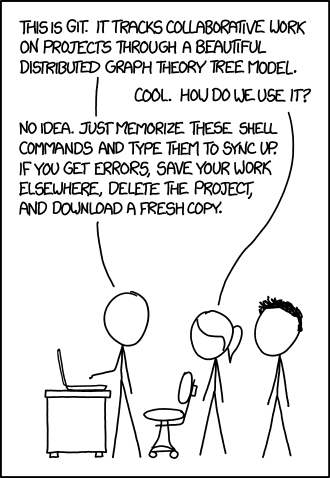
## What is Git?
|
|
|
|
|
|
|
|
## What problems are we trying to solve?
|
|
|
|
- How can we keep track of our work?
|
|
- How can we coordinate working with others?
|
|
|
|
## Git is...
|
|
|
|
- a distributed version control system.
|
|
- a method of communicating changes in (text) documents.
|
|
|
|
## Git is not..
|
|
|
|
- a programming environment
|
|
- a panacea for having to write your dissertation
|
|
|
|
## Our goal
|
|
|
|
- Introduce how to work on the command line
|
|
- Introduce the basic commands to get started
|
|
- review how git works
|
|
- dive into normal tasks that you will face
|
|
|
|
# Preliminaries
|
|
|
|
## Have you installed Git and the assoicated tools?
|
|
|
|
| **Operating System** | Windows | MacOS | Linux |
|
|
|---------------- | --------------- | --------------- | --------------- |
|
|
| Git Source | [git for windows](https://gitforwindows.org/) | [homebrew or Xcode](https://git-scm.com/download/mac) | `sudo apt/yum/pkg/zypper install git` |
|
|
| Text Editor | Nano (comes with git for windows) | Nano (already installed) | Nano/Vim/Emacs |
|
|
|
|
|
|
## Quick intro to the command line
|
|
|
|
- Used to be _the_ way to control a computer.
|
|
- Very powerful.
|
|
- Not just one command line, there are multiple different "shells"
|
|
- Window: CommandPrompt, PowerShell, **GitBash**
|
|
- MacOS: **Bash**
|
|
- Linux: **Bash**
|
|
|
|
Why are we using the command line?
|
|
|
|
- Git was built to be used on the command line.
|
|
- All the instructions to fix problems are written with the CLI in mind.
|
|
|
|
## Basic Bash syntax
|
|
|
|
```bash
|
|
command [arguments separated by spaces]
|
|
```
|
|
Pay attention to spelling, spaces, and capitalization.
|
|
|
|
```bash
|
|
command this has four arguments
|
|
command "this has one argument"
|
|
```
|
|
|
|
## Navigating the command line
|
|
|
|
- `pwd`: Print Working Directory.
|
|
- `ls`: LiSt.
|
|
- `cd`: Change Directory.
|
|
- `nano`: The text editor we will be using.
|
|
|
|
::: notes
|
|
Get everyone to open bash at their home location. pwd, then talk about slashes etc.
|
|
Talk about spaces and quoting and escaping. Show a variety of paths.
|
|
:::
|
|
|
|
## Bash Activity
|
|
Prep: [Download](/git-introduction/git_intro.zip) and extract the zip file I've provided.
|
|
|
|
1. Open bash/gitbash in the extracted directory.
|
|
2. Figure out what directory you are in.
|
|
3. Start exploring the directories using the command line.
|
|
|
|
|
|
How is this similar to using your file browser?
|
|
|
|
Try typing `nano [filename]` to open one of the text files
|
|
|
|
::: notes
|
|
There are a couple of files with useful information.
|
|
|
|
Please go through them with the students as you explore the filetree.
|
|
|
|
It might be helpful to go through the directory outside of the command line too.
|
|
:::
|
|
|
|
## Getting help on the command line
|
|
|
|
When you run into issues on the command line, you need to know how to get help:
|
|
|
|
- internet searches (google, stackoverflow, etc)
|
|
- local resources
|
|
- command help pages
|
|
- man pages
|
|
- info pages
|
|
|
|
```bash
|
|
ls --help
|
|
man ls
|
|
info ls
|
|
```
|
|
|
|
::: notes
|
|
Examine some of the CLI options for the command presented earlier.
|
|
Maybe:
|
|
|
|
- `ls -l`
|
|
- `ls -a`
|
|
|
|
:::
|
|
|
|
|
|
|
|
# Git Basics - Recording file changes
|
|
|
|
## Concepts
|
|
|
|
- Repositories: A directory where you will be tracking changes.
|
|
- Snapshots: A copy of the state of the repository at a given time.
|
|
- Working Copy: Changes that haven't been recorded in a snapshot yet.
|
|
|
|
## Initializing Repositories
|
|
|
|
Let's start a new repository.
|
|
|
|
1. navigate to the extracted directory I gave you.
|
|
2. create a new folder with a random name (don't use spaces!)
|
|
3. open the command line in this new folder
|
|
4. `git init .`
|
|
|
|
The `git init` command turned the current directory (`.`) into a git repository.
|
|
|
|
If you were to type `git init repo_name` it would create a new directory named
|
|
`repo_name/` and then turn it into a git repo.
|
|
|
|
## Configurations
|
|
|
|
Now let's set some defaults that will make your life easier:
|
|
|
|
```bash
|
|
git config --global core.editor "nano"
|
|
git config --global user.email "your_email@example.com"
|
|
git config --global user.name "Your Name"
|
|
```
|
|
|
|
## Writing Files (No git involved)
|
|
|
|
Ok, time to make some changes
|
|
|
|
```bash
|
|
nano README.txt
|
|
nano test.txt
|
|
```
|
|
|
|
Now let's see what git has to say:
|
|
|
|
```bash
|
|
git status
|
|
```
|
|
|
|
## Marking Files for Inclusion (Staging changes)
|
|
|
|
Now let's stage these files (mark that we want to track these files)
|
|
|
|
```bash
|
|
git add README.txt test.txt
|
|
```
|
|
|
|
Now let's see what git has to say:
|
|
|
|
```bash
|
|
git status
|
|
```
|
|
|
|
## Snapshotting changes (Commits)
|
|
|
|
Now let's take a snapshot.
|
|
In git this is called a commit.
|
|
|
|
```bash
|
|
git commit
|
|
```
|
|
|
|
## Commit Messages
|
|
|
|
- When writing a commit, you have the responsibility of explaining what happened.
|
|
- This helps teammates - including future you - know what you were doing and why.
|
|
- Let's write a meaningful commit.
|
|
|
|
## Let's Practice
|
|
|
|
Let's make personal wiki's to keep track of what we are doing.
|
|
|
|
1. navigate to the `git_intro_download/` directory.
|
|
2. initialize a git repo using `git init wiki`
|
|
3. change directory to wiki
|
|
4. `nano basic_git_workflow.txt`
|
|
5. write something
|
|
6. stage it
|
|
7. write a commit message and commit it.
|
|
8. add some more files and edits and repeat steps 5-7 a few times.
|
|
|
|
## Git Log - noticing what happens
|
|
|
|
Lets take a look at what you just did.
|
|
|
|
```bash
|
|
git log
|
|
git log --oneline
|
|
```
|
|
|
|
## Ready to move on?
|
|
|
|
- Is everyone comfortable and ready to move on?
|
|
- Have you committed everything you have?
|
|
- What questions do you have?
|
|
|
|
# Git Concepts
|
|
|
|
## How Git Works
|
|
|
|
Please take notes in your wiki; saving, staging, and committing as you go.
|
|
Put each topic into it's own file; we will use them later.
|
|
|
|
If you run into issues, please let me know and I'll pause to help.
|
|
|
|
I owe this approach to explaining git to
|
|
[Tom Preston-Werner's Git Parable](https://tom.preston-werner.com/2009/05/19/the-git-parable)
|
|
|
|
## Snapshots
|
|
|
|
When working with a project, you might want to know the history of that
|
|
project.
|
|
A simple way to do this is to make copies or snapshots at regular or important
|
|
points.
|
|
|
|
> Imagine I am writing a novel. I start by writing "It was a dark and stormy knight."
|
|
In order to avoid loosing my work, I save my working version, and then make a copy
|
|
to google drive called `novel-(date1).docx`.
|
|
Later I decide to fix my error and change it to "It was a dark and stormy night."
|
|
I then save my working version and make a second copy `novel-(date2).docx`.
|
|
|
|
## Storing Objects
|
|
|
|
This is the basic way git works.
|
|
Each time a file is committed, a copy is saved to a hidden directory in the
|
|
`.git` folder.
|
|
Staging the file marks that you want to save the current version of the file.
|
|
|
|
```{=html}
|
|
<details>
|
|
<summary>Explore</summary>
|
|
In your wiki, stage a change for a file.
|
|
Look at 'git status' to see what has been staged.
|
|
Now change the same file, and check 'git status' again.
|
|
The old version is staged, but the new one is not.
|
|
</details>
|
|
```
|
|
|
|
## How does git name each file version?
|
|
There is a computer science tool called a [hash function](https://en.wikipedia.org/wiki/Hash_function).
|
|
It allows us to give each version of a file a (nearly) unique name that depends
|
|
on the file's contents.
|
|
|
|
1. Navigate to the `bash_exploration/` directory.
|
|
2. run `sha1sum c.txt`
|
|
3. Does it match `cf44e4a24958c62790979deaad545d23c8fbe98e`?
|
|
4. Edit `c.txt` by removing the '(txt)' part of the first line.
|
|
5. What is the new sha1sum?
|
|
|
|
This is called a Content Addressible System, because we can address each
|
|
unique version of our content.
|
|
|
|
|
|
## Incremental Snapshots
|
|
|
|
Imagine if I had 100 different files, and I was taking full snapshots
|
|
each time I changed one or two of them.
|
|
I would end up with a lot of copies of the same content.
|
|
|
|
If I wanted to save on storage space, I could instead copy
|
|
just the versions that I changed.
|
|
|
|
This is what Git does.
|
|
Each snapshot contains just a list of the staged files, i.e. the files that we
|
|
have said have changed in an important way.
|
|
|
|
This is done by saving the staged objects with SHA1SUM names, and then writing
|
|
a small file that contains the filenames and SHA1SUM names of the change.
|
|
This is what committing a change does.
|
|
|
|
## Constructing a DAG - Commit Parents
|
|
|
|
Now notice one problem with Incremental Snapshots.
|
|
If I miss a snapshot somewhere, I am left without those changes.
|
|
So, I need a way to know which previous snapshots are required to get to a
|
|
specific state.
|
|
|
|
The solution is to allow commits to include information on **'parent'** commits.
|
|
Now we can draw a graph of how we get to a specific state.
|
|
|
|

|
|
|
|
|
|
## Confusing DAGS
|
|
|
|
Imagine the following commit DAG
|
|
|
|

|
|
|
|
How can we know what state we should have?
|
|
|
|
## Pointers (branches, tags, HEAD)
|
|
|
|
In CS, a pointer is something that records an address to something else.
|
|
|
|

|
|
|
|
Three common types of pointers: Branches, Tags, and HEAD
|
|
|
|
## Branches
|
|
|
|
A branch is a flexible marker that simplifies isolating work from different
|
|
parts of the codebase.
|
|
It is used to track areas of work.
|
|
For example, if I:
|
|
|
|
- Wanted to experiment with something without messing with the main code.
|
|
- Was trying to fix a bug and needed to add a bunch of debugging.
|
|
- Wanted to try implementing a specific advisor's suggestions before going
|
|
all in on it.
|
|
- Try to incorporate all the work of a collaborator who's work I'm going to need
|
|
to fix.
|
|
|
|
When you create a commit, a branch will change to point to the new commit.
|
|
|
|
> Branches are cheap, use them.
|
|
|
|
## Tags
|
|
|
|
A tag points to a specific commit.
|
|
They are useful for:
|
|
|
|
- Marking releases or versions of software.
|
|
- Identifying a commit where an error was added.
|
|
- In Economics: Marking the version of an analysis you presented in your dissertation.
|
|
|
|
## HEAD
|
|
|
|
Points to the commit that your current working copy is based on.
|
|
|
|
You may see a **detached HEAD** error.
|
|
No the revolution hasn't started yet, you just got your HEAD pointing to a
|
|
specific commit instead of a branch pointer.
|
|
|
|
## Return of the DAG
|
|
|
|

|
|
|
|
- How can we know what state we should have?
|
|
- What is HEAD pointing to? What should it be pointing to?
|
|
|
|
## Conflicts
|
|
|
|

|
|
|
|
Take a look at `commit 10`.
|
|
Notice how it has to handle the cases where
|
|
|
|
- `Commit 5` has removed `b.txt` but `commit 9` hasn't
|
|
- `Commit 5` and `Commit 4` have conflicting edits of `e.txt`
|
|
|
|
-------------------------
|
|
|
|
> Notice how it has to handle the cases where
|
|
>
|
|
> - `Commit 5` has removed `b.txt` but `commit 9` hasn't
|
|
> - `Commit 5` and `Commit 4` have conflicting edits of `e.txt`
|
|
|
|
This is called a conflict, where the same file has had different
|
|
changes happen in different branches.
|
|
|
|
To handle this, Git asks you to resolve it, choosing what should be kept
|
|
or removed.
|
|
Resolving a conflict is part of merging branches.
|
|
|
|
Merging is the main skill we want to develop.
|
|
|
|
## Rewriting History - the DAG can be modified (kind of)
|
|
|
|
Because the DAG is just a bunch of records pointing to other records,
|
|
you can rewrite it, ***BUT*** if you rewrite a copy of the DAG
|
|
and your coworkers don't, then you're in for a world of hurt.
|
|
|
|
This is what advanced GIT consists of: rewriting the commit DAG so that it
|
|
clearly, cleanly, and consisely represents how the codebase grew.
|
|
|
|
We will only take the briefest of looks at one way to do that.
|
|
|
|
# How to work with Git
|
|
|
|
## Review of basic git workflow.
|
|
|
|
Remember!
|
|
|
|
1. init repo
|
|
2. add and edit files
|
|
3. stage files
|
|
4. commit files
|
|
5. repeate 2-4 as many times as needed.
|
|
|
|
## Git Log
|
|
|
|
You can inspect what has been going on using:
|
|
|
|
```bash
|
|
git log
|
|
git log --graph
|
|
git log --oneline
|
|
git log --oneline --graph
|
|
...
|
|
```
|
|
|
|
## Git Help
|
|
|
|
If you ever forget what options are available for git:
|
|
```bash
|
|
git --help
|
|
git [option] --help
|
|
```
|
|
|
|
For example
|
|
|
|
```bash
|
|
git log --help
|
|
```
|
|
|
|
## Let's Start Branching
|
|
|
|
To create a new branch, either of the following work:
|
|
```bash
|
|
git checkout -b [new_branch_name]
|
|
git switch -c [new_branch_name]
|
|
```
|
|
|
|
In our wiki repo, let's create a branch named *spellcheck*
|
|
```git
|
|
git checkout -b spellcheck
|
|
```
|
|
|
|
Now check which branch we are on
|
|
```bash
|
|
git branch
|
|
git status
|
|
```
|
|
|
|
## Swapping between branches
|
|
|
|
There are two ways to change between branches
|
|
|
|
```bash
|
|
git checkout [branch]
|
|
git switch [branch]
|
|
```
|
|
|
|
- `git switch`: only used to change branches
|
|
- `git checkout`: does so much more
|
|
|
|
## Merging Branches (FF Merges)
|
|
|
|
Ok, let's do the following:
|
|
|
|
- add a file in our spellcheck branch
|
|
- switch to the main branch
|
|
- merge spellcheck into main
|
|
|
|
```bash
|
|
git switch spellcheck
|
|
echo "hello world" > n.txt
|
|
git add n.txt
|
|
git commit -m "said hello to terra"
|
|
git switch main
|
|
ls #note how n is missing
|
|
git log --oneline
|
|
git merge spellcheck
|
|
git log --oneline
|
|
```
|
|
|
|
This is called a fast-forward merge and occurrs when branches don't have conflicts.
|
|
|
|
## Creating Conflicts
|
|
|
|
> Conflicts are not bad, they are inconvenient and necessary.
|
|
|
|
A conflict occurs when two commits have different versions of the same file(s).
|
|
|
|
Let's create a conflict in our wiki repo.
|
|
|
|
```bash
|
|
git checkout spellcheck
|
|
nano favorites.txt #Talk about your favorite color
|
|
git add favorites.txt
|
|
git commit -m "write an actual description"
|
|
git switch main
|
|
nano favorites.txt #Talk about your favorite food"
|
|
git add favorites.txt
|
|
git commit -m "write an actual description"
|
|
git log --oneline
|
|
git merge spellcheck
|
|
```
|
|
|
|
## Three Way Merges
|
|
|
|
In this case we have a warning message: `CONFLICT (add/add): Merge conflict in favorites.txt`
|
|
|
|
```bash
|
|
git status
|
|
nano favorites.txt
|
|
```
|
|
|
|
Note the symbols "<<<<<" "======" ">>>>>".
|
|
These tell us what the differences are between the commits
|
|
|
|
To resolve the commit:
|
|
|
|
- we edit the files in conflict to get what we want from them.
|
|
- stage the changes.
|
|
- commit the merged files.
|
|
|
|
```bash
|
|
git log --graph --oneline
|
|
```
|
|
|
|
## Practice (5 min)
|
|
|
|
- checkout main and start writing some more about your favorite food.
|
|
- checkout spellcheck and start writing more about your favorite color.
|
|
Notice that spellcheck didn't get the changes from main.
|
|
- merge spellcheck into main (checkout main then `git merge spellcheck`)
|
|
- Resolve the merge.
|
|
- merge main into spellcheck at some point.
|
|
|
|
Why would normal practice be to merge your release branch into your
|
|
development branch, then merge back?
|
|
|
|
## Introducing a normal workflow
|
|
|
|
Usually, you have branches that represent releases and branches that represent
|
|
areas you are working on.
|
|
|
|
Consider the following branches.
|
|
|
|
- `main`: This is the branch that you are using to present work that you
|
|
consider somewhat complete, i.e. when you have a first draft of your data
|
|
processing code, or the output data.
|
|
- `data_processing`: This is where you write your data processing code,
|
|
e.g. a web scraper and data munging tools.
|
|
It might include a copy of a `.csv` file or `.rdata` file that you will use
|
|
in the analysis later.
|
|
- `regression_analysis`: This is where you develop the analysis that you will
|
|
apply to the data you have.
|
|
This will require pulling the most recent data to analyze.
|
|
|
|
----------
|
|
|
|
What this might look like.
|
|
|
|
1. init repo
|
|
|
|
>2. write things such as README in main.
|
|
>3. Create `data_processing` branch
|
|
>4. Get `data_processing` to a working state (committing along the way).
|
|
>5. merge main into data processing, fix conflicts, then merge`data_processing` into main.
|
|
>6. create a branch `regression_analysis` from main.
|
|
>7. start writing your analysis, committing along the way.
|
|
>8. Notice that the data is incorrect.
|
|
>9. checkout `data_processing`
|
|
>10. fix the error that is giving you the incorrect data
|
|
>11. merge the fixes into main with a helpful description.
|
|
>12. checkout `data_analysis` and merge the fixes from main.
|
|
>13. finish your analysis with the corrected data
|
|
>14. push analysis to main.
|
|
>15. Start a new branch `report` and begin writing your report.
|
|
|
|
## View from main street
|
|
|
|
To someone looking at your main branch, they would see.
|
|
|
|
1. You created data processing tools.
|
|
2. You fixed an error in the data processing tools.
|
|
3. You then used that corrected data to perform an analysis.
|
|
|
|
## Quick Mention - Squashes
|
|
|
|
Sometimes when you have a bunch of small rough changes, you might want
|
|
to turn them into a single (nice looking) commit.
|
|
|
|
This is called squashing
|
|
|
|
```bash
|
|
git merge --squash [branch name]
|
|
```
|
|
|
|
For example, if we had 3 commits in spellcheck, we could squash merge them
|
|
into main by:
|
|
|
|
```bash
|
|
git switch main
|
|
git merge --squash spellcheck
|
|
```
|
|
|
|
This is one way to rewrite the DAG.
|
|
It depends on the fact that branches are disposable.
|
|
There is no need to keep a branch around after it is squashed.
|
|
|
|
# Remotes
|
|
|
|
## Git is a Distributed VCS
|
|
|
|
We have focused on the Version Control System portions of Git.
|
|
Now it is time to look at how to use it as a "distributed" VCS and how
|
|
to collaborate together.
|
|
|
|
> Git originated as a tool to develop the Linux Kernel.
|
|
It is now the most popular VCS in the world.
|
|
This is - in part - because people can work on the same thing
|
|
without getting in each other's way.
|
|
|
|
Because Git is flexible, it supports many different workflows.
|
|
When you work with an established team, learn their workflow.
|
|
|
|
|
|
## Adding a local Remote
|
|
|
|
A remote is somewhere that git will fetch commits from.
|
|
A repository can have more than one remote.
|
|
|
|
> A local remote is a remote that is on the same computer, e.g. a separate
|
|
HDD or USB drive.
|
|
|
|
How would we add a remote?
|
|
|
|
- `git remote --help`
|
|
|
|
>- e.g. `git remote add usb_drive /path/to/usb/drive/repo`
|
|
>- `git clone --help`
|
|
>- `git clone /path/to/onedrive/folder/with/repo`
|
|
|
|
## Remote workflow
|
|
|
|
```bash
|
|
# Begin by fetching chagnes
|
|
git fetch remote/branch
|
|
# Merge changes from remote branch into your current branch
|
|
git merge remote/branch
|
|
|
|
# Work like normal
|
|
|
|
# Give your updates back
|
|
git push remote/branch
|
|
```
|
|
|
|
There is a command that combines the fetch and merge steps:
|
|
```bash
|
|
git pull remote/branch
|
|
```
|
|
|
|
## Exercise
|
|
|
|
- I've got a usb drive that we can pass around.
|
|
- It already has a git repo on it.
|
|
- We are going to create a joint wiki.
|
|
- Each person chooses a topic or two from their personal wiki.
|
|
- We will pass around the USB a couple of times, allowing people to
|
|
- clone the repo
|
|
- add their topics
|
|
- push to the repo
|
|
- We will then divide into editing teams and I'll assign you a topic or two
|
|
that you will edit.
|
|
- As we pass the USB around, you'll get a chance to pull and push changes.
|
|
- Talk as an editing team, but don't share computers.
|
|
|
|
## Git Forges
|
|
|
|
When people think of git, they usually think of github.
|
|
|
|
> Git is to Github as video is to YouTube.
|
|
[Quoted in Hari-up](https://santoshhari.wordpress.com/2020/06/17/git-github-p0rn-p0rnhub-problematic-alternatives/)
|
|
|
|
A Git Forge provides
|
|
|
|
- A non-local git remote
|
|
- features such as bug trackers and wiki's to help coordinate software development.
|
|
|
|
## Demo Git Forge
|
|
|
|
I have a git forge that we are going to practice using
|
|
|
|
We are going to
|
|
|
|
- add it as a remote
|
|
- continue the experiment using the remote.
|
|
|
|
## Cloning non-local remote
|
|
|
|
- Login
|
|
- Getting the URL
|
|
- add the remote
|
|
- Making branches
|
|
- Pushing branches from CLI
|
|
- Merging to Main.
|
|
|
|
> NOTE!!!
|
|
I will be removing your access to this git remote sometime after the lab is over.
|
|
You will still have a local copy of the wiki though!
|
|
|
|
|
|
|
|
# Final Thoughts
|
|
|
|
## How have I used Git in my work?
|
|
|
|
- I have used git to track my code for both data processing and data analysis
|
|
- If I were taking a class on econometrics where we have to code up some
|
|
analyses, I might keep track of it in Git.
|
|
A folder for each homework, tagging it right before submitting it.
|
|
I would only use one branch probably.
|
|
- I have used git to coordinate work for an econometrics group project.
|
|
- I use it to recover an analysis that I deleted by accident.
|
|
|
|
- I am currently working on my disseration in LaTeX.
|
|
- I use git to be able to revert mistakes and sync work across multiple computers.
|
|
|
|
|
|
## What should you continue learning?
|
|
|
|
- **.gitignore files** - Sometimes you don't want to stage a whole class of files.
|
|
A `.gitignore` file tell git to not to stage them.
|
|
For example, if you are doing an analysis in python, you might get a
|
|
`__pycache__/` directory.
|
|
If you put a line that says `*/__pycache__/` in your `.gitignore`, it will not
|
|
be suggested that you stage anything in that directory.
|
|
- **Git LFS** - Saving large files that are not text can be difficult, such as
|
|
when you are saving `.pdf`, `.jpg`, `.png`,`.xlsx`, `.docx`, or `.zip` files.
|
|
Any change will cause the whole thing to be resaved, and this can quickly add
|
|
up to lots of storage being used.
|
|
Git LFS does a couple of things to reduce how much storage will be used.
|
|
- **Branching Strategies** - Knowing how to setup and use branches properly is a
|
|
powerful thing.
|
|
There are tons of blogs with information from different companies explaining
|
|
how they are doing it.
|
|
- **Advanced Merging and Rebasing** - There is so much to do here.
|
|
|
|
## Most of All
|
|
|
|
### Practice!
|
|
|
|
## Conclusion
|
|
|
|

|
|
|
|
I'm sorry, you just became the local git expert...
|
|
|
|
## Seriously though
|
|
|
|
- Git is a useful tool to keep track of software versions and coordinate work.
|
|
- Most of the time you can get away with just memorizing some basic commands and workflow
|
|
- When things are hard, remember
|
|
- The basic model of how it works. Try to figure out what went wrong.
|
|
- DuckDuckGo search is your friend. Google might be as well.
|
|
- ChatGPT/Claude.ai are pretty good at explaining errors, commands, etc.
|
|
- Don't commit anything that needs to remain secret. It is rather hard to delete something from a Git repo.
|
|
|
|
|
|
|
|
## Feedback
|
|
|
|
- What questions do you have?
|
|
- What would you like to keep practicing?
|
|
- How could I improve this presentation?
|
|
|
|
|
|
|
|
## License
|
|
|
|
```{=html}
|
|
<p xmlns:cc="http://creativecommons.org/ns#" xmlns:dct="http://purl.org/dc/terms/">
|
|
<a property="dct:title" rel="cc:attributionURL" href="https://git.youainti.com/Teaching/git-introduction">Introduction to Version Control Systems (GIT) for Economists</a>
|
|
by
|
|
<a rel="cc:attributionURL dct:creator" property="cc:attributionName" href="https://www.youainti.com">Will King</a>
|
|
is licensed under <a href="https://creativecommons.org/licenses/by-nc-sa/4.0/?ref=chooser-v1" target="_blank" rel="license noopener noreferrer" style="display:inline-block;">CC BY-NC-SA 4.0<img style="height:22px!important;margin-left:3px;vertical-align:text-bottom;" src="https://mirrors.creativecommons.org/presskit/icons/cc.svg?ref=chooser-v1" alt=""><img style="height:22px!important;margin-left:3px;vertical-align:text-bottom;" src="https://mirrors.creativecommons.org/presskit/icons/by.svg?ref=chooser-v1" alt=""><img style="height:22px!important;margin-left:3px;vertical-align:text-bottom;" src="https://mirrors.creativecommons.org/presskit/icons/nc.svg?ref=chooser-v1" alt=""><img style="height:22px!important;margin-left:3px;vertical-align:text-bottom;" src="https://mirrors.creativecommons.org/presskit/icons/sa.svg?ref=chooser-v1" alt=""></a></p>
|
|
```
|